
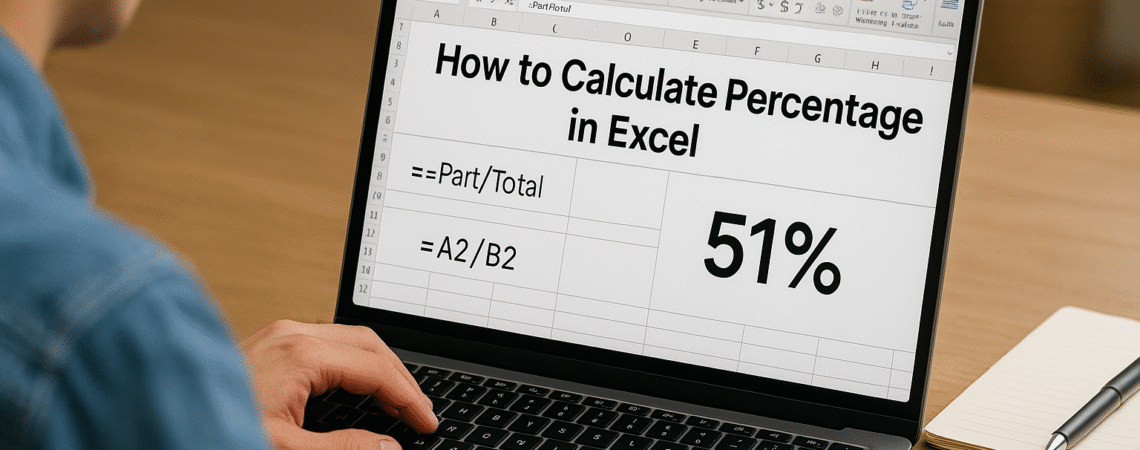
If you use Excel even a little, you already know how useful percentages can be — marks, discounts, salary hikes, GST, sales growth… everything depends on them.
The good news? Excel can calculate all of this with one simple idea:
👉 Percentage = Part / Total
Once you understand this, every percentage problem becomes easy.
Let’s walk through it step by step — with real examples, not boring theory.
⭐ 1. How to Find a Basic Percentage in Excel
Imagine you scored 45 marks out of 50.
In Excel, enter:
- A1 → 45
- B1 → 50
Now type this formula:
=A1/B1
Press Enter → then click the % button.
You’ll instantly get 90%.
That’s it — this is the core of everything.
⭐ 2. Percentage of Marks (Most Common Use)
Let’s say your marks look like this:
| Subject | Scored | Total |
|---|---|---|
| Math | 78 | 100 |
| Science | 72 | 100 |
Use:
=B2/C2
Then apply the percentage format.
Excel will handle the rest.
⭐ 3. How to Calculate Percentage Increase
A salary example always makes this simple.
Old salary: ₹30,000
New salary: ₹35,000
Place them in two cells and use:
=(New – Old) / Old
In Excel:
=(35000-30000)/30000
After formatting → 16.67% increase.
You can use the same idea for sales, traffic, revenue — anything that goes up.
⭐ 4. How to Calculate Percentage Decrease
Suppose a product drops from ₹1200 to ₹900.
Formula:
=(Old – New) / Old
Excel:
=(1200-900)/1200
You’ll get 25% decrease.
⭐ 5. Percentage Change (General Formula)
When you don’t know whether a value increased or decreased:
=(New Value – Old Value) / Old Value
If the result is positive → increase
If negative → decrease
⭐ 6. How to Find Discount Percentage
Original price: ₹1500
Sale price: ₹1200
Use:
=(1500-1200)/1500
Result → 20% discount
Works perfectly for ecommerce price analysis.
⭐ 7. Calculate GST Percentage in Excel
If GST amount = ₹180 and base price = ₹1000:
=180/1000
Result → 18%
⭐ 8. Convert a Decimal Into a Percentage
If a cell has 0.25, just select it → press %.
You instantly get 25%.
💡 Quick Reference Table
| Purpose | Formula |
|---|---|
| Basic percentage | =Part/Total |
| Percentage increase | =(New–Old)/Old |
| Percentage decrease | =(Old–New)/Old |
| Discount % | =(Original–Sale)/Original |
| Marks % | =Marks/Total |
| GST % | =GSTAmount/BasePrice |
❗ Common Mistakes Beginners Make
- Forgetting to press the
%button - Using New instead of Old in the wrong place
- Adding text inside numeric cells
- Leaving blank cells in formulas
- Typing values manually instead of using A1, B1 references
✔ Final Thoughts
Excel isn’t scary when you break it down.
Every percentage problem — marks, growth, discount, salary hike, GST — works on the same formula.
Once you use cell references and keep values clean, Excel will do the maths for you.
🔗 Related Tools & Guides
Marks Percentage Calculator
Find your marks percentage instantly using a simple formula.
Calculate →GPA to Percentage Calculator
Easily convert GPA to percentage using our formula-based tool.
Convert →